Amazon Web Services - IaC Deployment (Recommended)
Deploy Guard's AWS role from a generated CloudFormation or Terraform template, across your organization or one account.
The Praetorian Guard Platform (PGP) provides AWS integrations at both the Organization level and individual account level. Praetorian recommends integrating at the Organization level for the most comprehensive coverage and experience. This guide walks you through deploying the necessary infrastructure as code (IaC) using either Terraform or CloudFormation to establish secure connectivity between your AWS environment and PGP.
Note: AWS environments with Control Tower should follow the IaC setup guide.
Prerequisites
Before starting the integration, ensure you have:
- AWS CLI or console access with sufficient permissions to create IAM roles, policies, and Cloudformation stacks
- Organization management administrator permissions (for Organization-level integration)
- Account administrator permissions (for individual account integration)
- If you chose to deploy the IaC using Terraform, ensure access to AWS Cloudshell or an authenticated workstation with Terraform pre-installed
Integration Process
Step 1 - Initiate Integration Setup
- Navigate to the Integrations section in your PGP dashboard
- Click Add Integration, open Cloud Service Providers, and choose AWS
- In AWS Setup, pick a Scope of Integration card — Organization or Individual Account — then fill the fields and click Next
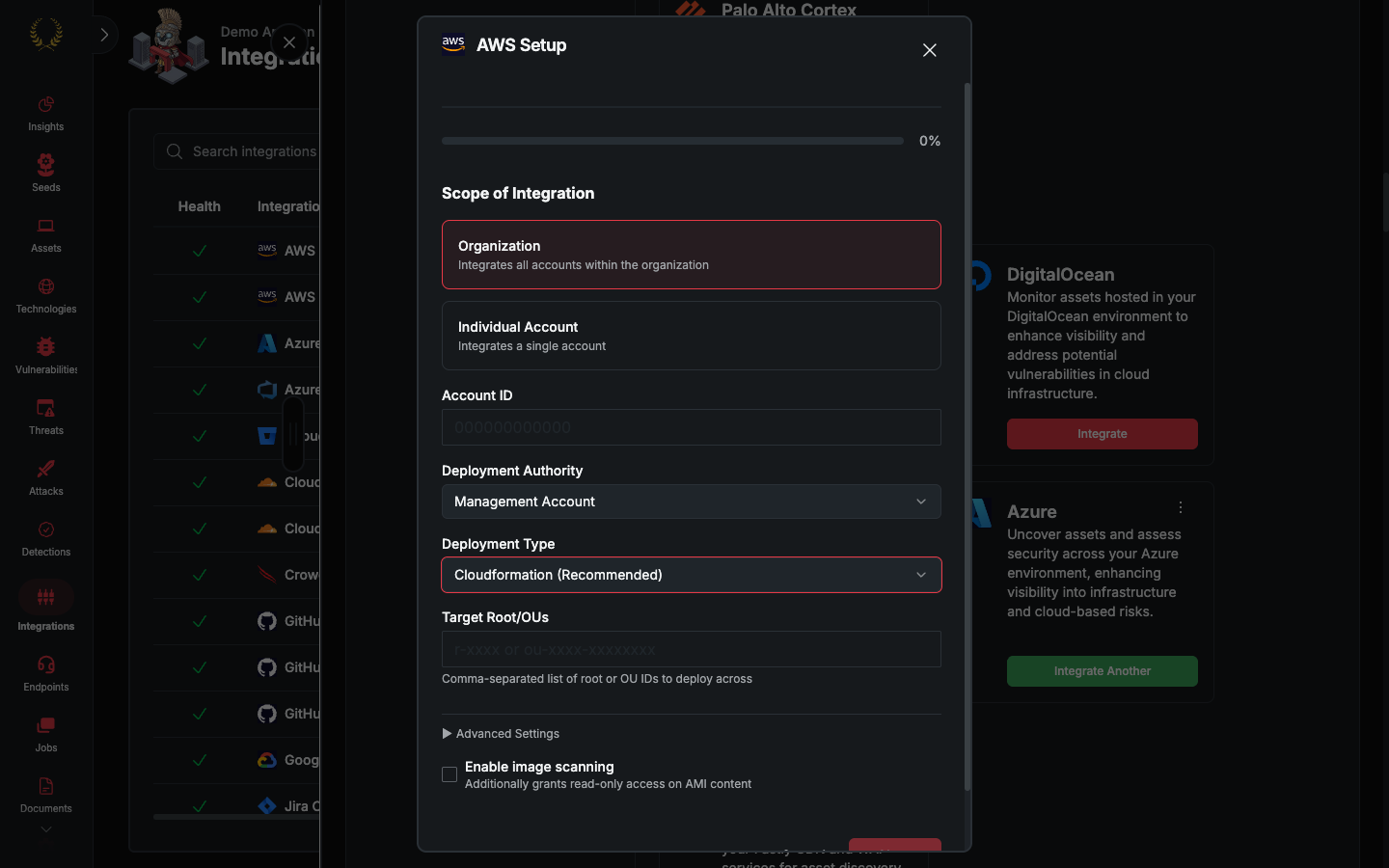
Organization-Level Integration (Recommended)
We recommend you integrate at the Organization level for more comprehensive and accurate coverage of security weaknesses across your environment. For Organization-level integration, you'll need to provide:
Account ID: Your AWS management account ID (12-digit number, e.g.,
123456789012)Deployment Authority: Management Account or Delegated Admin Account
Target Root/OUs (required): Your AWS Organization's Root ID (format:
r-xxxx) or one or more Organizational Unit IDs (format:ou-xxxx-xxxxxxxx) that define where the PGP role will be deployed.Important — three easily confused IDs. Target Root/OUs is not the same as your Organization ID or your management account ID. These three identifiers all describe parts of the same management account but are distinct values:
For most customers we recommend providing the Root ID (
r-xxxx) so the deployment covers every account and captures global controls such as Service Control Policies (SCPs) and Resource Control Policies (RCPs). Provide one or more OU IDs only if you intentionally want to scope the integration to a subset of the Organization.Deployment Type: Cloudformation (Recommended) or Terraform
Individual Account Integration
Ideally, individual account integrations are meant for accounts not part of an Organization. For individual account integration, you'll need to provide:
- Account ID: The specific AWS account ID you want to integrate
- Deployment Type: Cloudformation (Recommended) or Terraform
For either integration scope, if you need or prefer a specific IAM role name, expand Advanced Settings and enter it in Role Name (Optional). The generated CloudFormation or Terraform template will create and configure the role with this name. If you leave the field blank, Guard uses the default role name, chariot-integration-role.
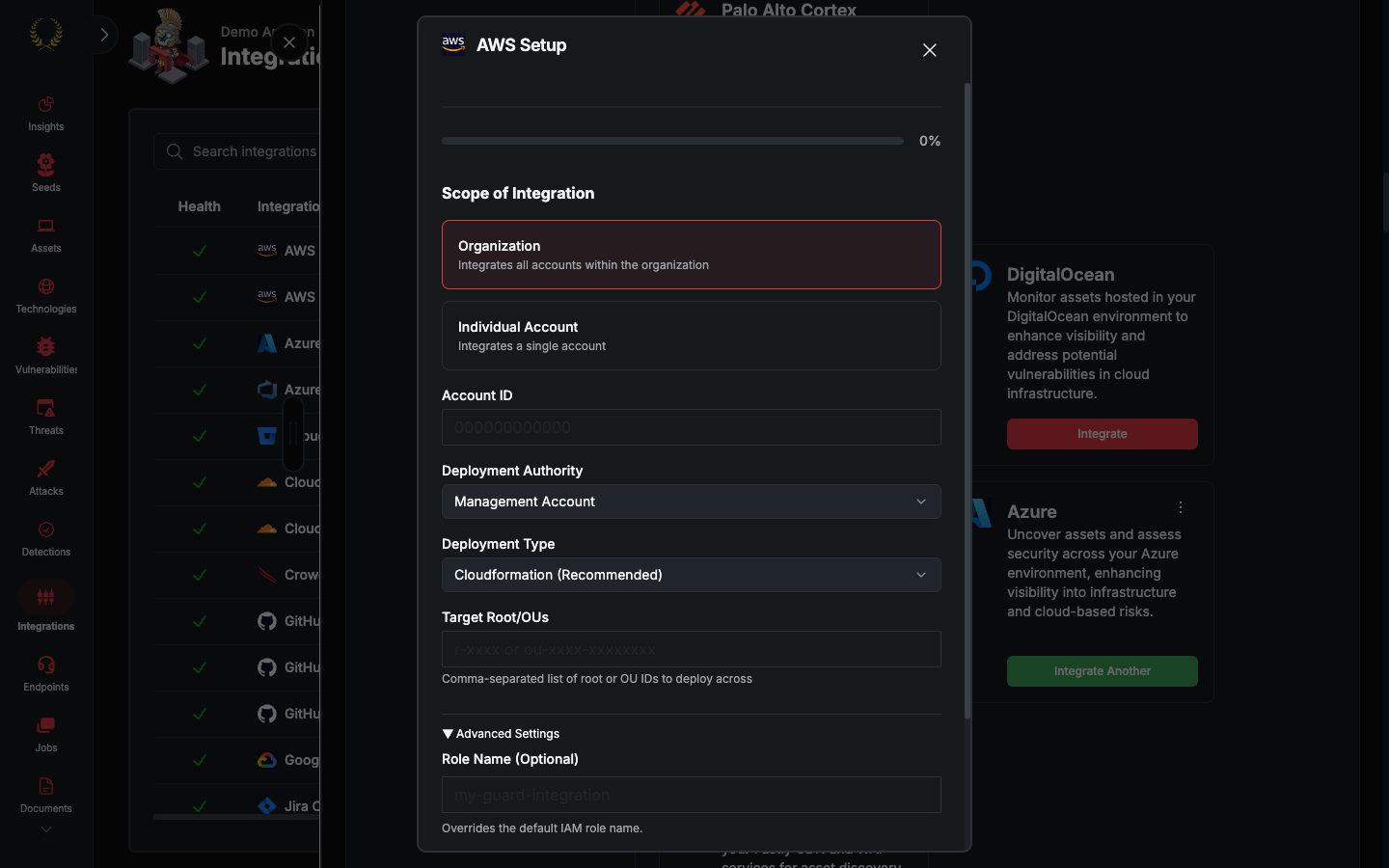
Optionally check Enable image scanning to grant read-only access on AMI content. See AMI Scanning. Then click Next.
Step 2 - Download Integration Template
After providing your account information, PGP will generate the appropriate deployment template.
- Click "Download IAC Template" to download the deployment files
- The template contains all necessary IAM roles and policies pre-configured with your unique external ID
You can only proceed to the next step once you've downloaded the template. Make sure to deploy your template successfully before proceeding to the next step.
Step 3 - Deploy the Template
Please see details based on your selected option (deployment type of Cloudformation or Terraform).
CloudFormation Deployment (Recommended)
PGP supports two CloudFormation paths. "Create in console" is the fastest and is recommended for most customers; the download-template path is available if you need to review or version-control the template before deploying.
Option A — Create in Console (Recommended)
This flow launches the AWS CloudFormation console with the PGP template and all parameters (including the Target Root/OUs you entered in Step 1) pre-filled. No download or upload is required.
- In the PGP integration modal, click "Create in console". A new browser tab opens to the AWS CloudFormation Quick create stack page.
- Sign in to your AWS Management Console. Confirm you are in the Organization management account by visiting the AWS Organizations console and ensuring the management account ID matches the ID shown on the top right of the UI.
- On the Quick create stack page, verify the pre-populated parameters. The Targets field is pre-filled with the Target Root/OUs value you provided in Step 1, and the external ID and template URL are populated automatically.
- Acknowledge the IAM capabilities checkbox and click "Create stack".
- Wait for the stack to reach
CREATE_COMPLETE, then proceed to Step 4.
Option B — Download and Upload Template
- Sign in to your AWS Management Console (please confirm it’s your Organization management account; you can do so by visiting the AWS Organizations console and ensuring the management account ID matches the ID shown on the top right of the UI. See the screenshot below)
- Navigate to the CloudFormation service
- Click "Create stack" → "With new resources (standard)"
- Upload the CloudFormation template downloaded in the previous step
- Provide stack parameters:
- Targets: Enter the same Target Root/OUs value you provided in Step 1 (e.g.,
r-xxxxfor Organization-wide deployment,ou-xxxx-xxxxxxxxfor an OU, or leave empty for single-account integrations).
- Targets: Enter the same Target Root/OUs value you provided in Step 1 (e.g.,
- Follow the instructions, review, and create the stack
- Wait for stack creation to complete (status: CREATE_COMPLETE), and proceed to the next step only with a successful deployment
For Organization-Level Deployment: The template creates a StackSet that automatically deploys the PGP role across all accounts in your specified Target Root/OUs. New accounts added under the targets will automatically receive the role.
For Individual Account Deployment: The template creates a single IAM role in the specified account.
Terraform Deployment
The preferred integration method is through the Cloudformation. If you have already completed the integration by following the directions for Cloudformation integration above, you do not need to continue with the Terraform instructions.
You can deploy Terraform via CLI on a workstation or through AWS Cloudshell. Please ensure you’re logged into the session for the Organization management account for Organization-level integrations.
- Populate your working directory (or upload to Cloudshell) with the Terraform file downloaded in the previous step
- Initialize Terraform and review the planned changes:
terraform init
terraform plan
- For Organization-level deployment, set the targets variable with the appropriate Organization Root ID:
terraform plan -var='targets=["r-xxxx"]'
- Apply the configuration:
terraform apply
NOTE: It is a good idea to maintain the Terraform state resulting from the deployment. However, keep in mind that the Terraform module deploys a StackSet similar to the Cloudformation method. This is the most efficient way to deploy roles across an AWS Organization.
Step 4 - Complete Integration
- After deploying the template, return to the PGP integration modal
- Click "Finish" to complete the integration
When you do this, PGP will automatically:
- Validate the integration by attempting to assume the deployed role
- Verify validity of access to your AWS environment
- Add the integration to your integrations list upon successful validation
Get Support
Congratulations! Your AWS environment is now integrated with PGP and ready for security monitoring. If you encounter any issues during the integration process or need assistance with configuration, our support team is here to help. Please don't hesitate to reach out to support@praetorian.com for personalized assistance with your PGP deployment.
Still need help? Ask the team