Role-Based Access Controls (RBAC)
What the Admin, Analyst, and Read Only roles can do, how admins assign them, and how SSO roles apply.
Guard uses role-based access controls (RBAC) to decide what each user can see and do. This article explains the roles, how to assign them to invited users, and how to send roles from your identity provider for SSO users.
Roles
Guard has three roles, from most to least permissive:
Permissions by role
You can have a different role on each account you have access to. An API key or an SSO role claim can cap a user's role: the user never gets more than that role allows.
Assign roles to invited users
- Go to Settings → Users.
- Click Add User, enter the email address, choose Admin, Analyst, or Read Only, and click Add.
- To change a role later, choose a new role in the user's Role column. The change takes effect immediately.
- To remove a user, click the revoke icon in the user's Actions column.
Only Admins can add users, remove users, or change roles. See Authorized Users.
Roles for SSO users
When you add an SSO provider, you set two role fields:
- Default Role for SSO Users: the role given to SSO users when your identity provider sends no valid role.
- Role Claim Name (Optional): the name of the claim in your ID token that carries the user's Guard role, for example
app_role.
Guard decides an SSO user's role in this order:
- If the user was provisioned through SCIM, their SCIM role applies. See Group Role Mapping.
- If the ID token has a valid role claim, that role applies, and it cannot be changed in Guard.
- If there is no valid role claim, and an Admin has set the user's role on Settings → Users, that role applies.
- Otherwise, the Default Role for SSO Users applies. The user is added to Settings → Users with that role the first time they sign in.
We recommend setting the default role to Read Only, so that users with a missing or misconfigured claim start with the least access.
Role claim rules
- Guard reads the role from the ID token only. It does not read the access token.
- The value must be a single string. A claim sent as an array, such as
["analyst"], is ignored even when it holds a valid value. - The value must be exactly
admin,analyst, orreadonly, in lowercase. Any other value, such asAdminorread-only, is ignored.
Add an SSO provider with roles
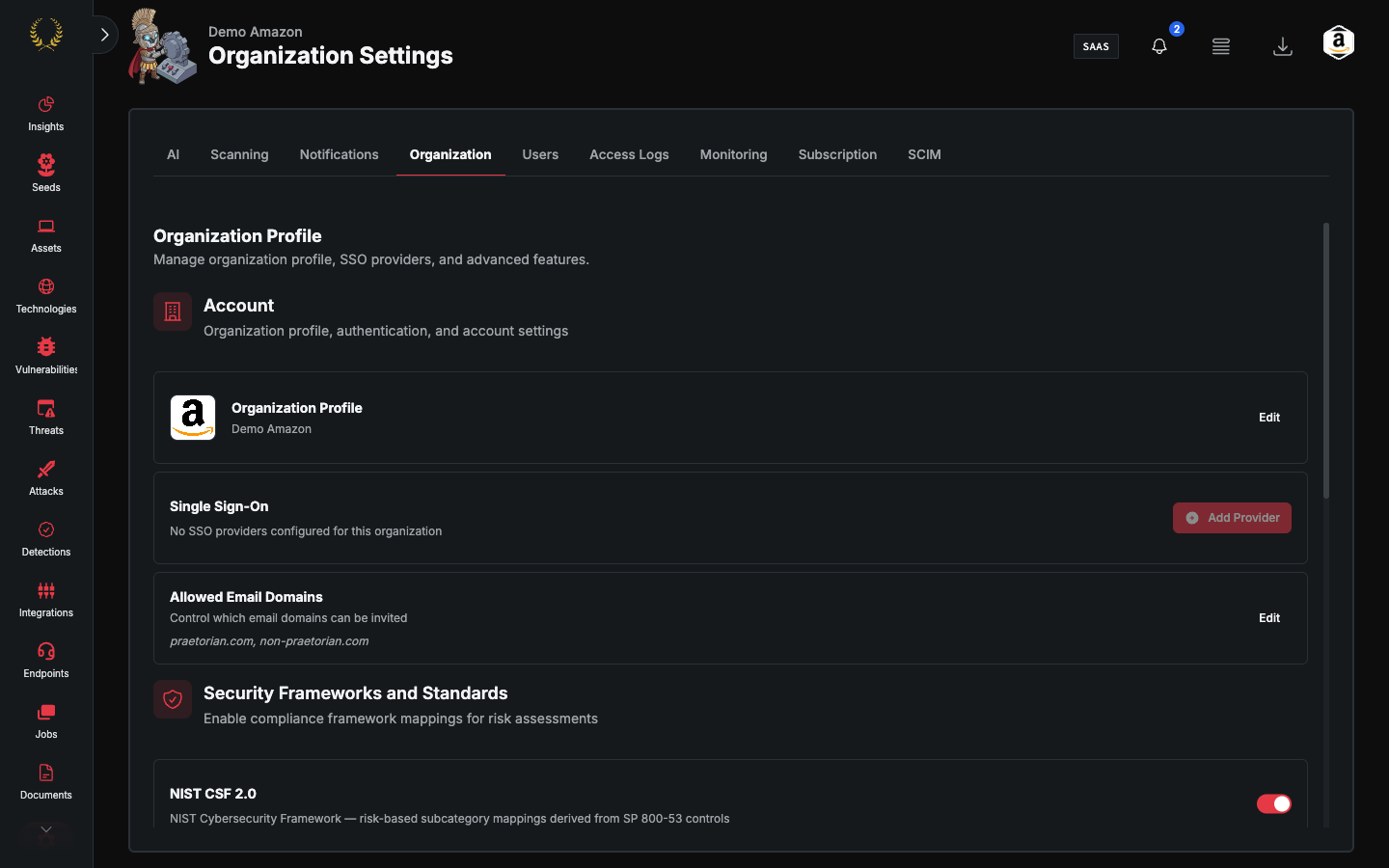
- Go to Settings → Organization.
- On the Single Sign-On card, click Add Provider, or Add Another Provider if one already exists.
- Enter the Domain, Client ID, Secret, and Issuer URL.
- Choose the Default Role for SSO Users.
- Optionally, enter the Role Claim Name.
- Click Integrate.
Azure AD (Entra ID) Setup
For Entra ID, Guard expects roles to be sourced from Entra App Roles defined on the application registration used for Guard SSO. App Roles are the supported integration point — Entra groups, raw user attributes, and other custom claim sources are not recommended.
The built-in Entra roles claim is emitted as an array, which Guard ignores. You must therefore project the user's App Role into a single-string custom claim via a claims mapping policy, and use that custom claim as the Role Claim Name in Guard.
Step 1: Define App Roles on the Application
- Sign in to the Microsoft Entra admin center.
- Navigate to Entra ID > App registrations and select the application you registered for Guard SSO.
- Under Manage, select App roles > Create app role.
- Create one App Role for each Guard role you want to grant. Each role's Value must be exactly one of:
admin,analyst, orreadonly(lowercase, case-sensitive). The display name can be anything you prefer (for example, "Guard Admin"). Set Allowed member types to Users/Groups. - Save each App Role.
Step 2: Assign Users and Groups to the App Roles
- From your app registration's Overview, open the linked Enterprise application.
- Under Manage, select Users and groups > Add user/group.
- Select the users or groups, then under Select a role pick the App Role that should grant the desired Guard role.
- Each user should end up assigned to exactly one of your Guard App Roles. If a user is assigned to more than one, the resulting
rolesclaim will contain multiple values and Guard will not be able to resolve a single role.
Step 3: Emit the Role as a Single-String Custom Claim
Because Guard ignores array-valued claims, you cannot use the default roles claim directly. Instead, emit a single-string custom claim derived from the user's App Role assignment.
In your app registration's Overview page, under Managed application in local directory, click the link to your enterprise application.
Under Manage, select Single sign-on (or, for OIDC apps, configure Token configuration on the app registration).
In the Attributes & Claims (SAML) or Token configuration (OIDC) section, add a new claim:
- Name — Any name you choose (for example,
app_role). This is the value you will enter as the Role Claim Name in Guard. - Source — Attribute, set to
user.assignedroles(or use a transformation that emits the first/only element of the assigned roles as a string). - Ensure the output is a single string, not an array. If your tenant only emits the value as an array, configure a claims-mapping policy or transformation that returns the single assigned role string.
- Name — Any name you choose (for example,
Save the claim.
Step 4: Update the Application Manifest
- Return to App registrations and select your application.
- Under Manage, select Manifest.
- Set
acceptMappedClaimstotrue. - Save the manifest.
Step 5: Enter the Claim Name in Guard
In Guard, set Role Claim Name to the name you used in Step 3 (for example, app_role). Guard reads that claim from the ID token and uses its value as the user's role.
Okta Setup
To send Guard roles from Okta, you need to add a custom claim to the tokens issued by your Okta authorization server. This claim will map to the Role Claim Name you configured in Guard.
Two requirements apply to both options below:
- Include in token type must be set to ID Token. Guard does not read role information from the access token.
- The claim must resolve to a single string equal to
admin,analyst, orreadonly(lowercase). Any other value, or an array-valued claim, is ignored, and Guard falls back as described in Roles for SSO users.
Option A: Using a Custom Claim with User Profile Attribute
- In the Okta Admin Console, go to Security > API
- Select the Authorization Servers tab
- Choose your authorization server (e.g., default)
- Go to the Claims tab and click Add Claim
- Configure the claim:
- Name: Must match the Role Claim Name you configured in Guard (e.g., app_role)
- Include in token type: Select ID Token
- Value type: Select Expression
- Value: Enter an Okta Expression Language expression that resolves to the user's Guard role, such as user.guardRole (a custom profile attribute you define)
- Include in: Leave as Any scope or specify openid
- Click Create
Then set the custom profile attribute value (admin, analyst, or readonly) on each user in Okta.
Option B: Using Group Membership to Determine Roles
If you prefer to manage roles via Okta groups:
- Create groups in Okta for each Guard role (e.g., guard-admin, guard-analyst, guard-readonly)
- Assign users to the appropriate group
- In the Okta Admin Console, go to Security > API > Authorization Servers
- Select your authorization server and go to the Claims tab
- Click Add Claim:
- Name: Must match the Role Claim Name in Guard (e.g., app_role)
- Include in token type: Select ID Token
- Value type: Select Expression
- Value: Use an expression that maps group membership to a role string, for example: isMemberOfGroupName(guard-admin) ? admin : (isMemberOfGroupName(guard-analyst) ? analyst : readonly)
- Include in: Any scope
- Click Create
Verification
After configuring either option, test the setup by:
- Logging in to Guard via SSO
- Confirming the assigned role matches the expected value from your identity provider
Frequently asked questions
What role does a new user get? When you invite a user, you choose the role. An SSO user without a valid role claim gets the Default Role for SSO Users.
Can I create custom roles? No. Guard has three roles: Admin, Analyst, and Read Only.
Why can't I change settings or add integrations? These actions need the Admin role. Ask an Admin on your account to change your role.
I'm an SSO user. How do I change my role? If your identity provider sends a role claim, your IT administrator changes it there. Otherwise, an Admin on your account can change it on Settings → Users.
Is there a role-mapping screen in Guard for SSO? No. For SSO, you map roles in your identity provider. Guard has only the Role Claim Name and Default Role for SSO Users fields. For SCIM, use Group Role Mapping.
Still need help? Ask the team