Slack
Install Marcus, configure Slack webhook notifications, or set up Slack secrets scanning
Guard provides three separate Slack integrations. Choose the one that matches what you want to do:
- Marcus, the Guard AI assistant: Install Slack (Chat Bot) from Guard to ask Marcus questions and interact with Guard from Slack. Follow Install Marcus for Slack below.
- Slack notifications: Create an incoming webhook to send Guard alerts to a Slack channel. Follow Set up Slack webhook notifications below.
- Slack secrets scanning: Connect a bot token so Guard can scan Slack messages for exposed credentials. See Slack (Secrets Scanning).
Connecting one Slack integration does not configure either of the others.
Install Marcus for Slack
Start the Marcus installation from Guard. The authenticated Guard flow associates the Slack workspace with the correct Guard tenant; do not create a new Slack app or begin from Slack's app-management page.
You need permission to manage Guard integrations. Your Slack workspace might also require an administrator to approve the app.
- Sign in to Praetorian Guard Integrations.
- Select + Add Integration.
- Under Workplace Messaging, select Slack (Chat Bot).
- Select Integrate, then Add to Slack.
- Choose the Slack workspace where you want to use Marcus and approve the requested permissions.
After Slack authorization succeeds, you are returned to Guard and the Slack (Chat Bot) integration is connected. Installing the app does not connect every Slack channel automatically. Complete the channel connection flow below for each channel where you want to use Marcus.
Connect a Slack channel to a Guard account
The person connecting the channel needs permission to manage integrations for the Guard account.
- In Slack, open the channel where you want to use Marcus and run
/marcus connect. - In the private response from Marcus, select open Guard to finish within 15 minutes.
- Sign in to Guard if prompted, then choose the Guard account to connect to the channel.
- Select Connect, review the channel access warning, and select Confirm.
- When Guard displays Channel Connected, return to Slack.
Important: Marcus replies are normal channel messages. Connecting a channel authorizes every present and future member of that channel to see the Guard data Marcus returns, including members who do not have a Guard account. Connect only channels whose full membership is trusted with that Guard account's security data.
To disconnect a channel, open Settings → Notifications in Guard and use Disconnect under Connected Chat Channels.
Link your Slack identity and use Marcus
Each person invokes Marcus under their own Guard identity and permissions. Marcus responds only when the person's Slack identity is associated with a Guard user who has access to the Guard account connected to the channel.
- In a connected channel, mention
@Marcuswith a question. - If Marcus does not recognize your Slack identity, select the private Connect your Guard account link within 15 minutes.
- Choose the Guard account, select Link, and confirm the link.
- Return to Slack and mention
@Marcusagain. You can continue the conversation in the resulting thread without mentioning Marcus in every follow-up.
The identity-link prompt is visible only to you. Other channel members can see Marcus's answers, but they cannot invoke Marcus unless their own Guard user also has access to the connected Guard account. Linking controls who can invoke Marcus; channel membership controls who can see his answers.
If the Slack (Chat Bot) option is not available, /marcus connect does not complete, or you need help with workspace approval, contact Praetorian Support.
Set up Slack webhook notifications
Guard can also send push notifications for specified alerts using a Slack incoming webhook. This notification integration is separate from Marcus.
Note: For detailed information on Slack webhooks, refer to Slack's documentation: https://api.slack.com/messaging/webhooks.
Setting up Slack Webhooks
Visit https://api.slack.com/apps and click "Create New App" to begin.

Enter a name for your app and select the workspace where you want to use the app.
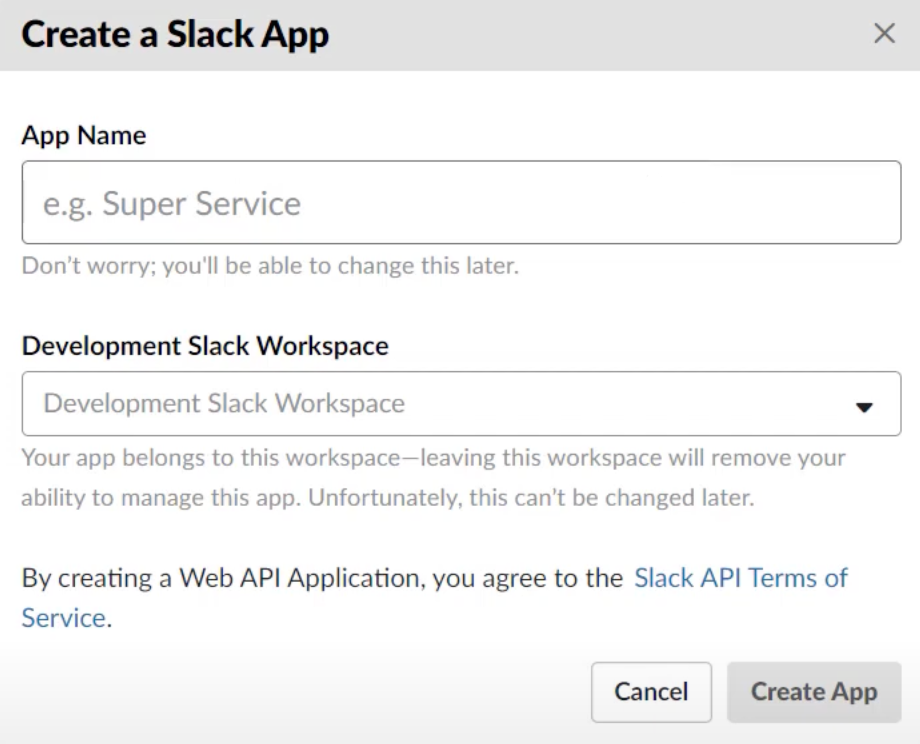
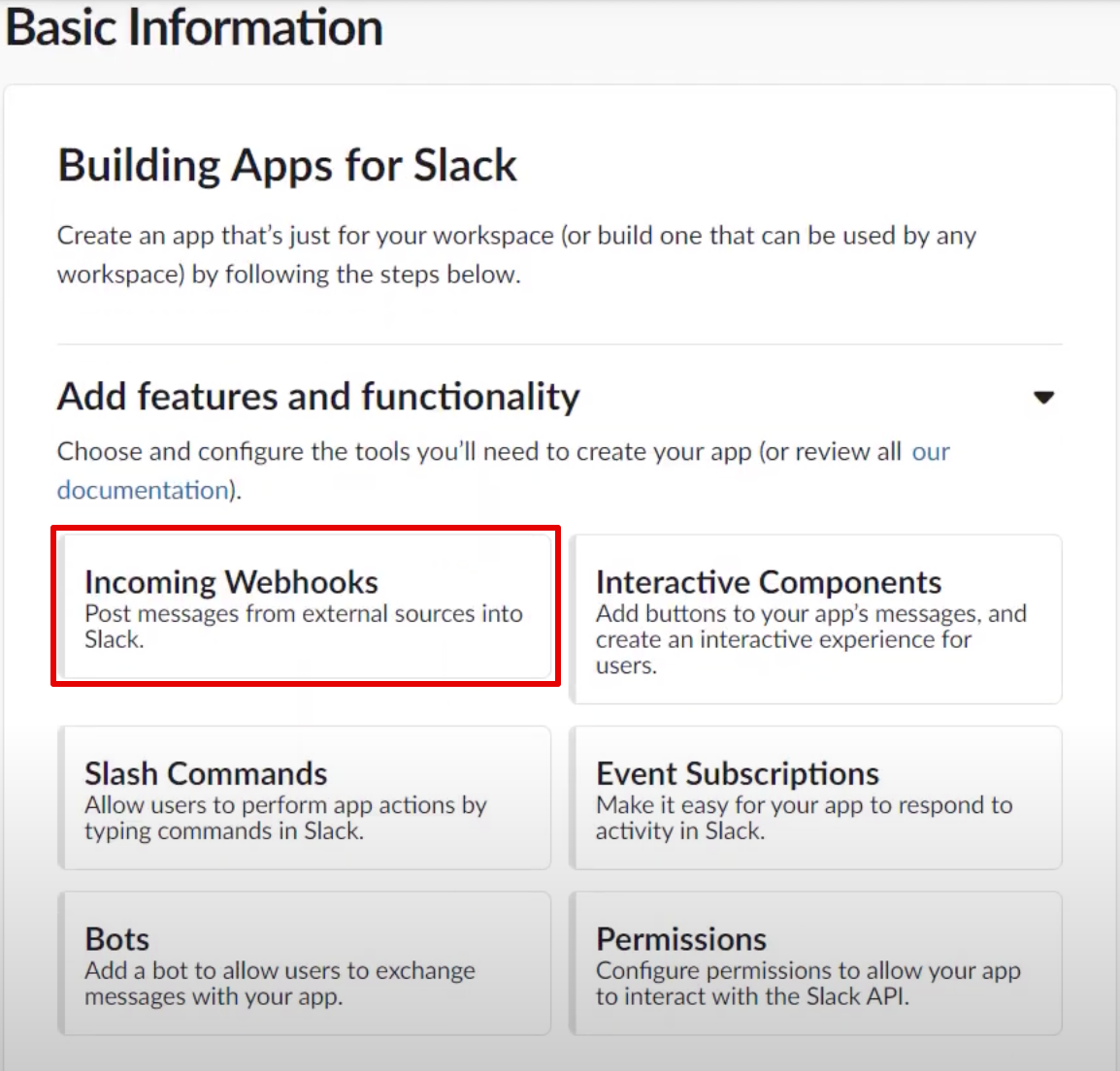
After creation, you'll see a list of available functionalities for your app. From the available functionalities, we'll focus on setting up "Incoming Webhooks".
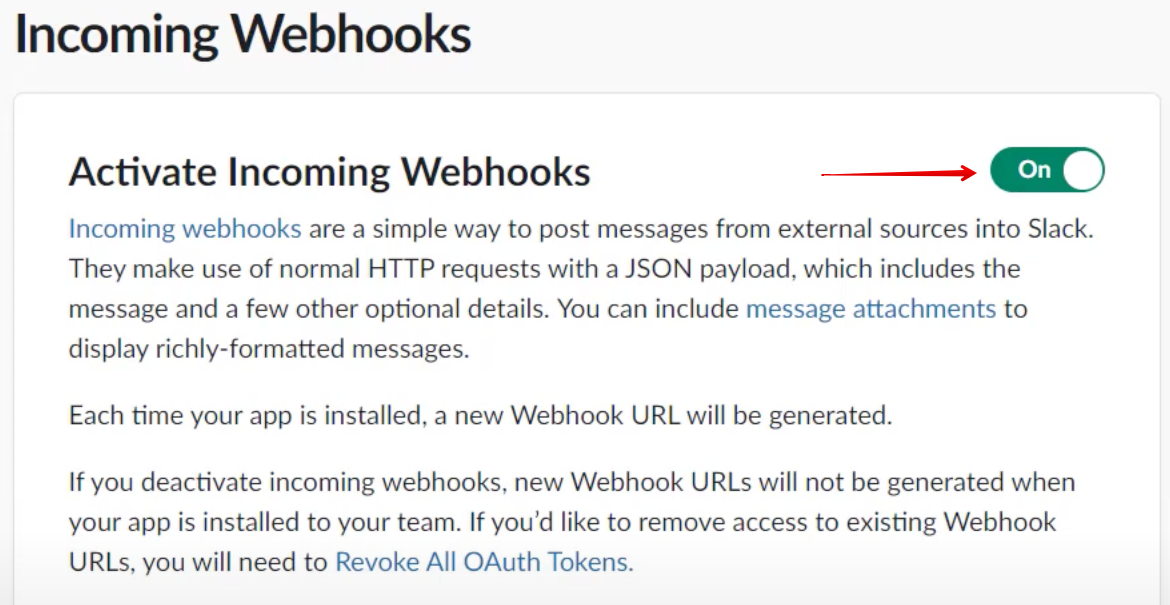
Toggle "Activate Incoming Webhooks" to On.
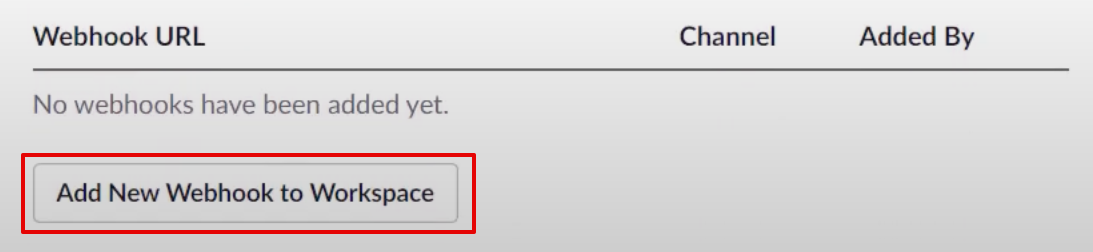
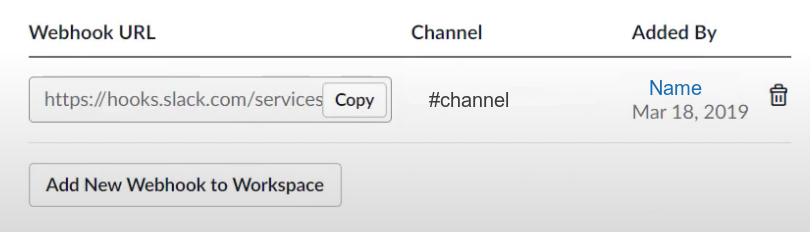
Click "Add New Webhook to Workspace".
Select the channel where you want notifications to appear. Click "Authorize".
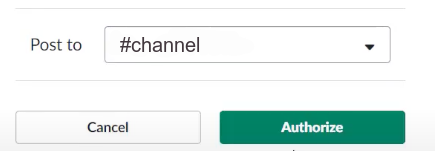
After authorization, you'll receive a unique webhook URL. Save this URL — you'll need it for the Guard setup.
Configuring Guard
Once you have created a Slack webhook, log into Guard and navigate to Integrations in the left sidebar. Select +Add Integration. Slack can be found under the Workplace Messaging section of integrations. You can also reach the Slack setup from the Notification Settings tab on the Settings page.

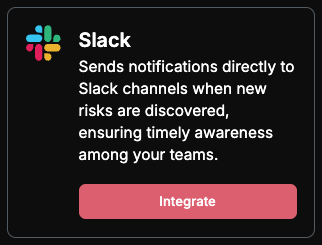
Click "Connect" on the Slack card.
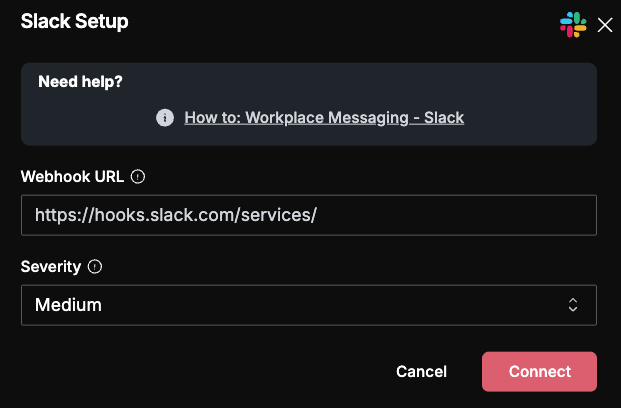
Paste the newly created Slack webhook URL into the Webhook URL field and specify the minimum severity level you would like to receive alerts for. Click Connect to complete the integration.
After successful setup, you should receive a test notification in your selected Slack channel confirming the integration is active.
If you run into any issues during the integration process or have questions about maximizing the value of this integration, our support team is ready to help. You can reach us at support@praetorian.com, and we'll be happy to guide you through any challenges you encounter.