Assets
Assets
Overview
Assets are the foundation of your attack surface in Guard. An asset represents anything externally discoverable that belongs to your organization — domains, IP addresses, web applications, cloud resources, code repositories, and more. The Assets page is your central hub for viewing, managing, and acting on everything Guard has discovered about your digital footprint.
Guard continuously monitors your assets, tracking their status, identifying vulnerabilities, and providing the context you need to understand and reduce your attack surface. Whether Guard discovered an asset automatically from your seed domains or you imported it from a cloud integration, the Assets page gives you full visibility and control.
The Assets Page
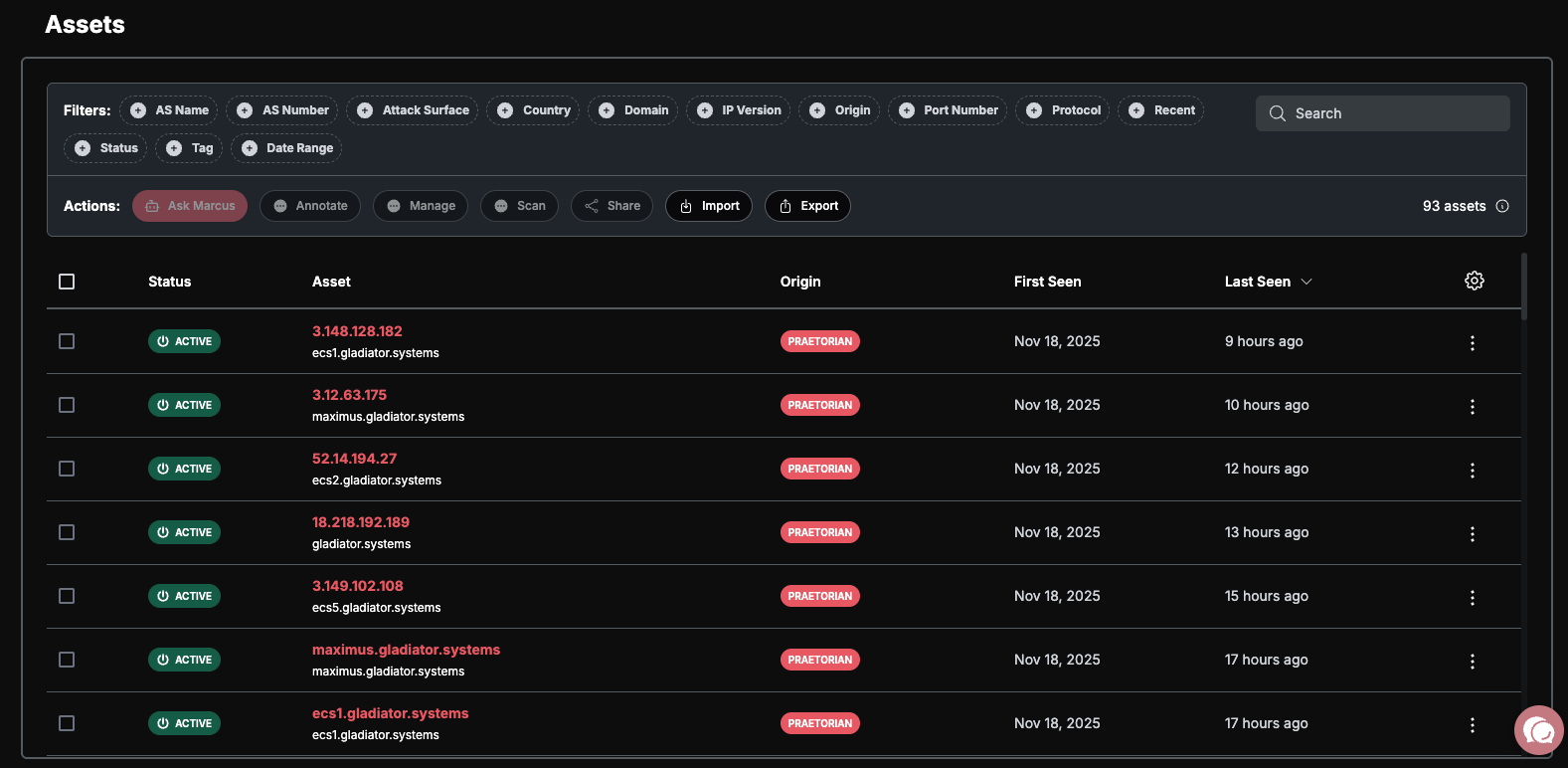
When you navigate to the Assets page from the left sidebar, you'll see a data table showing every asset Guard has discovered or that you've added to your attack surface. This table is designed to help you quickly find, filter, sort, and take action on assets at any scale — whether you have dozens or tens of thousands.
Table Columns
Each row in the assets table represents a single asset. The following columns are available:
Status — Shows the current monitoring state of the asset. Guard automatically tracks when assets were last seen during scanning to determine status:
Active — The asset has been confirmed during recent scans (within the last 5 days).
Inactive — The asset hasn't been seen in 5–20 days. It may still be online but hasn't responded to recent scans.
Expiring — The asset hasn't been seen in over 20 days. This often indicates the asset has been decommissioned or is no longer reachable.
Frozen — You've paused all monitoring and scanning for this asset. Guard will not run any scans against frozen assets.
Pending — The asset is being processed or imported and isn't yet part of your active attack surface.
Deleted — The asset has been removed from your attack surface.
Asset — The primary identifier for the asset, such as a domain name, IP address, URL, or cloud resource identifier. If the asset was added as a seed (a starting point for discovery), a small seed icon appears next to the name.
AS Name — The Autonomous System name associated with the asset's IP address, such as "AMAZON-02 - Amazon.com, Inc." This helps you identify which hosting provider or network owns the IP space.
AS Number — The Autonomous System Number (ASN) for the asset's network.
Country — The country where the asset's IP address is geolocated.
IP Version — Whether the asset is associated with an IPv4 or IPv6 address.
Attack Surface — Classifies where the asset sits within your overall attack surface. Assets can be tagged with one or more of the following:
External — Publicly exposed to the internet.
Internal — Only accessible from within your private network.
Cloud — Hosted in a cloud provider (AWS, Azure, GCP).
Application — A web application or service.
Repository — A code repository (GitHub, GitLab, Bitbucket, etc.).
When an asset belongs to multiple classifications, the table shows the first value with a "+N" indicator. Hover to see all classifications.
Origin — Shows how the asset was discovered or which integration brought it into Guard. Common origins include:
Chariot — Discovered natively by Guard's own scanning and enumeration capabilities.
Seed — Added by you as a discovery starting point.
Integration names such as AWS, Azure, GCP, CrowdStrike, and others appear when an asset came from a connected integration.
When an asset was discovered through multiple sources, the first origin is shown with a "+N" indicator. Hover to see all origins.
Tags — User-defined labels you've applied to organize and group assets. Tags are color-coded and clickable — click a tag to filter the table to just assets with that tag.
Created — The date the asset was first added to Guard.
Visited — The date Guard last confirmed the asset during a scan.
You can customize which columns are visible and reorder them using the column picker icon in the table header. Your column preferences are saved automatically.
Searching and Filtering
A search bar at the top of the table lets you quickly find assets by typing part of their identifier — a domain name, IP address, or resource name.
Below the search bar, dropdown filters let you narrow down the table by any combination of:
Status — Filter to Active, Inactive, Frozen, Deleted, or Pending assets.
AS Name — Filter by Autonomous System name.
AS Number — Filter by ASN.
Country — Filter by geolocation country.
IP Version — Filter to IPv4 or IPv6.
Attack Surface — Filter by classification (External, Cloud, Application, etc.).
Origin — Filter by discovery source or integration.
Port — Filter by detected open ports. You can type a custom port number to filter on the fly.
Protocol — Filter by network protocol (HTTP, HTTPS, TCP, UDP, etc.).
Tags — Filter by your custom tags.
Date Range — Filter by when assets were created or last seen.
All filters are multi-select — you can choose multiple values within any filter. A "Clear Filters" button appears when any filters are applied, letting you reset everything with one click.
Sorting
Click any column header to sort the table by that column. Click again to toggle between ascending and descending order. An arrow indicator in the header shows the current sort direction.
Selecting Assets and Bulk Actions
Each row has a checkbox on the left. Select one or more assets to reveal a bulk action bar with the following options:
Annotation Actions:
Add Note — Attach a text note or comment to the selected assets.
Add Tag — Apply one or more tags to the selected assets. You can choose from existing tags or create new ones.
Remove Tag — Remove tags from the selected assets.
Scanning Actions:
Comprehensive Scan — Runs all applicable scans for the selected asset types. Guard automatically determines which scan types are relevant based on whether the asset is a domain, IP address, web application, or other type.
Network Scan — Runs advanced network-level vulnerability detection. Only available for network-reachable assets (not web-only assets).
Port Scan — Enumerates open ports and services on the asset. Only available for network-reachable assets.
Web Crawl — Crawls the website to discover pages, paths, and linked resources. Only available for web assets. When you select this option, you'll be prompted to choose a user agent (Chrome, Firefox, Safari, Mobile, or Custom).
Web Scan — Performs a dynamic application security test (DAST) against the web asset. Only available for web assets.
Confirm Asset Affiliation — Verifies whether the asset belongs to your organization using Guard's AI-powered affiliation analysis.
Scanning actions that don't apply to your selected asset types are shown in a disabled state with a tooltip explaining why.
Distribution Actions:
Export Assets — Export the selected assets as a CSV or JSON file. You can choose which columns to include in the export.
Share URLs — Copy shareable links to the selected assets to your clipboard.
Status Management:
Freeze Asset — Pauses all monitoring and scanning for the asset. Use this for assets you want to keep in your inventory but don't need active scanning on.
Unfreeze Asset — Resumes monitoring and scanning for a previously frozen asset.
Delete Asset — Removes the asset from your attack surface.
AI Assistance:
- Ask Marcus — Opens Guard's AI assistant with context about the selected assets, so you can ask questions about their risk profile, get remediation recommendations, or explore relationships.
The Asset Detail Drawer
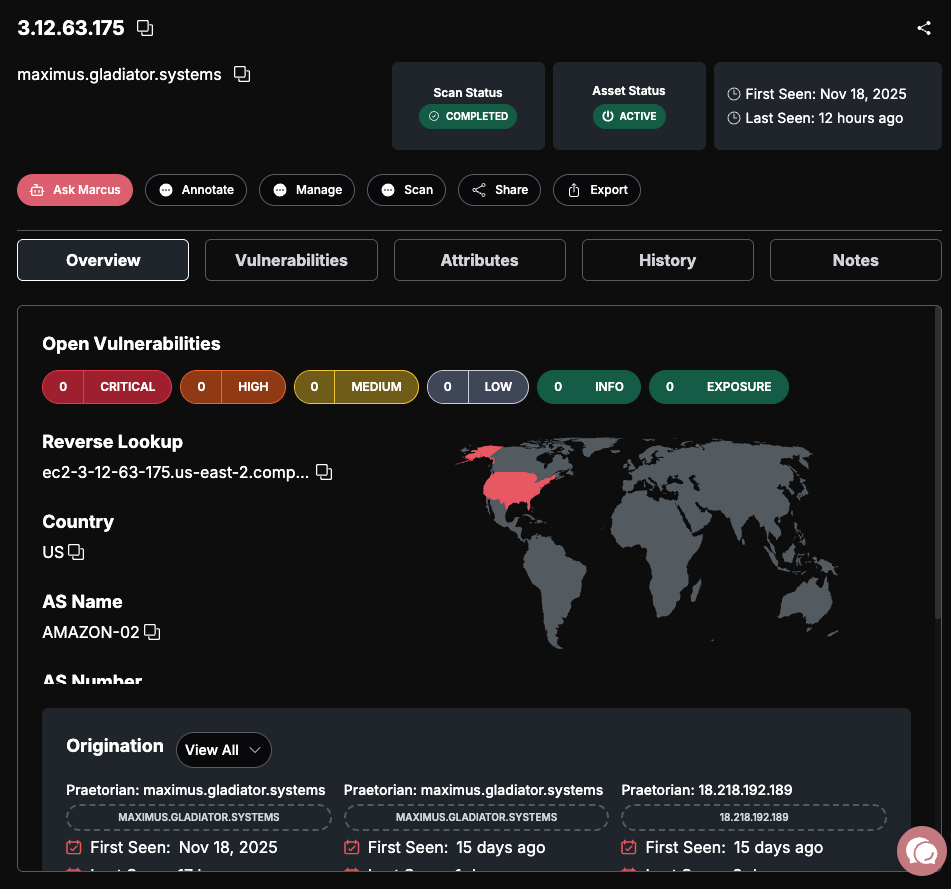
Click any row in the assets table to open the detail drawer — a panel that slides in from the right side showing comprehensive information about a single asset.
Drawer Header
At the top of the drawer, you'll see:
Asset Identifier — The full name of the asset (domain, IP, URL, etc.) with a copy button.
Share Button — Copies a direct link to this asset's detail view.
Group — The parent grouping for the asset (such as the root domain for a subdomain).
Tags — Any tags applied to the asset, with the ability to remove them.
Asset Status — The current status badge (Active, Inactive, Expiring, Frozen, Deleted, or Pending).
First Seen / Last Seen — The dates when Guard first discovered the asset and most recently confirmed it.
The same action buttons from the table (Add Note, Add Tag, Remove Tag, Export) are available in the drawer header as well.
Overview Tab
The Overview tab is the default view and provides the most important information at a glance.
Open Vulnerabilities — A count of all unresolved vulnerabilities associated with this asset, broken down by severity.
Each severity level shows a color-coded count, making it easy to see at a glance whether an asset has critical issues requiring immediate attention.
Attributes — Key technical details about the asset vary by type:
For IP addresses: IP address, PTR (reverse DNS) records, country, AS Name, AS Number, and AS range.
For cloud resources: ARN or resource ID, resource type (EC2, S3, RDS, etc.), region, and account/subscription/project ID.
Origination — Shows the story of how this asset was discovered. Each origination entry includes:
The discovery method or capability that found the asset (such as "DNS Reconnaissance" or "Cloud Scanning").
The specific value that was discovered.
When it was first discovered and when it was last confirmed.
Relationship Graph — A visual network diagram showing how this asset connects to others in your attack surface. You can see:
Parent assets — what this asset belongs to (for example, the root domain of a subdomain).
Child assets — what has been discovered underneath this asset.
Discovery origins — the seeds or integrations that led to this asset's discovery.
Click any node in the graph to navigate to that asset's detail view.
Vulnerabilities Tab
Shows a focused vulnerability table filtered to only the vulnerabilities affecting this specific asset. You can search, filter by status and severity, and click into individual vulnerabilities for full details. This is the same experience as the main Vulnerabilities page, scoped to this single asset.
Attributes Tab
A detailed listing of every attribute Guard has collected about the asset, organized by category:
For web applications: Detected technologies, sitemap structure, authentication mechanisms, and attack surface sub-categories.
For network assets: Discovered ports and services, running protocols, and TLS/SSL certificates.
For cloud resources: Resource properties, IAM roles and permissions, and public IP assignments.
Attributes are organized into collapsible sections so you can quickly find the information you need.
Notes Tab
A chronological list of all notes and comments attached to the asset. Each note shows the author, timestamp, and content. You can add new notes using the "Add Note" button, and delete your own notes.
History Tab
A timeline of all status changes for the asset, showing what the status was changed to, when, and by whom. This gives you a full audit trail of how the asset has been managed over time, displayed in reverse chronological order (newest first).
Affiliation Tab
This tab only appears for assets that have been through Guard's affiliation verification process. It shows:
Final Verdict — Whether the asset is Confirmed, Likely Confirmed, or Uncertain to belong to your organization.
Evidence — The supporting data points that led to the verdict, drawn from DNS records, SSL certificates, WHOIS information, web content analysis, and cloud integration cross-referencing.
Last Verified — When the most recent verification was performed.
Verification History — Previous verification attempts and their results.
How Assets Are Discovered
When Guard discovers assets, it employs a wide range of sophisticated discovery methods. Starting with your seed domains, Guard analyzes your attack surface using dozens of techniques that work together to build a complete picture of your digital footprint.
Domain and DNS Discovery
Guard starts with your seed domains and expands outward. It performs subdomain enumeration using multiple public data sources and APIs to discover subdomains you may not have known existed. The system runs WHOIS lookups to identify registration details and reverse WHOIS lookups (via Whoxy) to discover other domains registered by the same organization. DNS resolution maps domain names to IP addresses, and Guard integrates directly with managed DNS providers — including NS1, Cloudflare, and Akamai Edge DNS — to enumerate all zones and records within your DNS infrastructure.
Content Security Policy Analysis
Guard examines Content Security Policy (CSP) headers from your web properties. CSP headers often reference trusted third-party domains and related assets that belong to your organization. Guard extracts these references and then performs reverse CSP searches to find other websites that share the same CSP configurations — a strong indicator of common ownership.
SEC and Regulatory Filings
For organizations with public filings, Guard searches SEC EDGAR for mentions of digital assets, subsidiaries, and related business entities. This uncovers domains and properties associated with subsidiaries or acquired companies that might not be obvious from DNS alone.
Cloud Provider Integrations
Guard integrates directly with your cloud accounts to discover assets from the inside out:
AWS — Scans across all regions to discover EC2 instances, S3 buckets, RDS databases, Lambda functions, CloudFront distributions, and other resources.
Azure — Enumerates subscriptions and discovers virtual machines, storage accounts, App Services, Azure AD resources, and Azure DevOps projects.
GCP — Scans projects to discover Compute Engine instances, Cloud Storage buckets, Cloud Functions, Cloud Run services, Cloud SQL instances, App Engine apps, and public networking configurations.
Network and IP Analysis
Guard collects CIDR blocks for your organization from regional internet registries (ARIN, RIPE, APNIC) and uses this information to identify IP ranges that belong to you. Port scanning identifies open services across those ranges, and IP analysis maps addresses to Autonomous Systems to understand your network footprint.
Technology Fingerprinting
Guard performs service fingerprinting to identify what software and versions are running on discovered assets. BuiltWith integration identifies web technologies in use, while favicon analysis helps identify web applications and their technology stacks. These fingerprints help Guard select the right vulnerability scans to run.
Web Application Discovery
Guard discovers web applications by identifying HTTP/HTTPS services on open ports, detecting login pages and authentication mechanisms, and crawling web content to map site structure and discover linked resources. Screenshot capture provides visual confirmation of what's running on each web application.
TLS/SSL Certificate Analysis
Guard collects and analyzes TLS certificates from your web services, extracting organization names, subject alternative names, and certificate chains. This reveals related domains and services that share certificate infrastructure.
CDN and WAF Discovery
Guard integrates with content delivery and web application firewall providers — including Akamai WAF, Fastly, and Imperva — to discover assets that are protected behind these services and might not be directly visible through DNS or IP scanning.
Security Tool and Vulnerability Scanner Integrations
Guard can import assets from your existing security tools:
CrowdStrike (Spotlight and Flight Control) — Discovers endpoints and cloud-native assets.
Palo Alto Xpanse — Imports externally discovered assets.
Nessus, Rapid7 InsightVM, and Qualys — Imports scan results and discovered assets.
Orca — Discovers Kubernetes and container assets.
Identity and Device Management Integrations
Guard discovers assets through identity providers and device management platforms:
Okta — Discovers users and connected applications.
Azure AD — Enumerates directory users and resources.
Intune — Discovers managed devices.
PingOne — Discovers directory users.
IT Asset Management Integrations
Guard connects to IT asset management and monitoring platforms:
Axonius — Imports device and asset inventories.
ExtraHop — Discovers monitored network flows.
Freshservice — Imports IT assets from your service desk.
Code Repository Discovery
Guard discovers and monitors code repositories across GitHub, GitLab, and Bitbucket, identifying repositories that belong to your organization and monitoring them as part of your attack surface.
These capabilities represent the breadth of how Guard discovers assets — the system combines outputs from all of these methods, cross-referencing and deduplicating results to ensure comprehensive, accurate coverage of your attack surface. As you connect more integrations and add more seeds, Guard's discovery becomes increasingly thorough.
We're here to help you make the most of the Praetorian Guard Platform's (PGP) capabilities. If you have questions about using the Assets page or need assistance with any aspect of PGP, please reach out to our support team at support@praetorian.com. Our team is committed to helping you effectively secure and manage your attack surface.