Authorized Users
How to invite and remove people on Settings → Users.
Authorized Users
Settings → Users is titled User Management. Description: Manage users with access to your account. Add or remove authorized users and view collaborators.
Add User requires the manage_accounts entitlement. Impersonating a tenant is read-only.
Customers see Customer Authorized Users. Praetorian operators also see Praetorian Authorized Users (emails ending @praetorian.com). The account owner row is special: role is Account/Admin and has no remove action.
SCIM-provisioned users appear with a scim: member. Deactivated SCIM users stay listed until the IdP reactivates them. Provisioning itself is Settings → SCIM.
Add a user
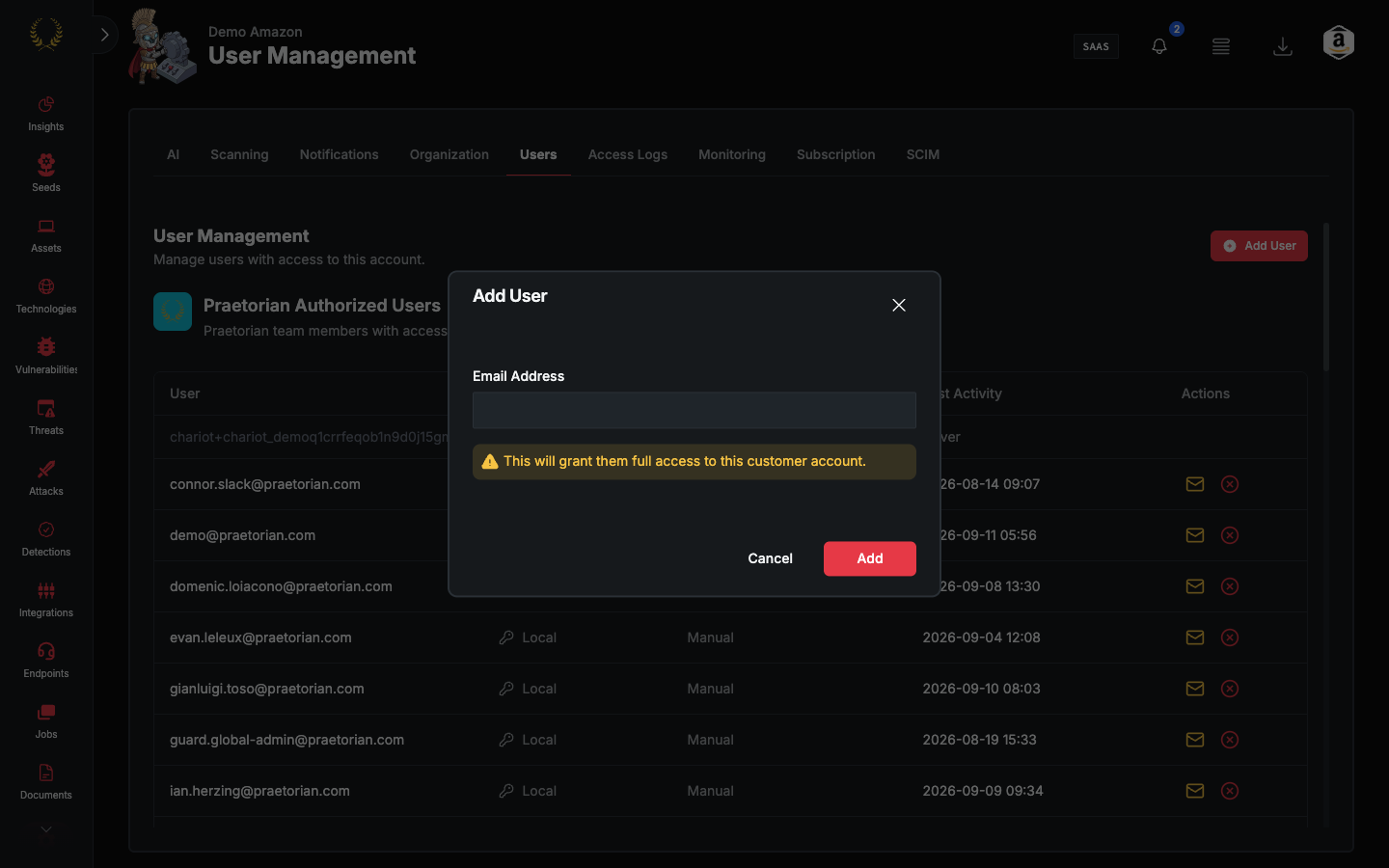
- Open Settings → Users.
- Select Add User.
- Enter Email Address (must contain
@). - If RBAC is on, select Role: Admin, Analyst, or Read Only.
- Select Add.
When RBAC is off, the invite is stored as admin. The modal warns This will grant them full access to your account. When a role is selected it warns This will grant them {Role} access to your account.
An invited local user is auto-subscribed to risk emails (see Settings → Notifications → Email Notifications). They set a password and MFA on first sign-in. SSO users are created on first SSO login instead — use Settings → Organization → Single Sign-On.
After they exist
Role is editable inline when RBAC is on (except the owner row). Compact Settings view hides Created. Actions (remove) require manage_accounts.