Insights
Insights
The Insights page is your central hub for analyzing, querying, and visualizing your security data. It brings together four powerful tools — each accessible as a tab across the top of the page — that let you interact with your attack surface data in different ways, from natural-language conversations to customizable dashboards to graph-based exploration.
The four tabs are:
AI Assistant — Ask questions about your security posture in plain English and get instant answers
Metrics — A customizable dashboard of security widgets tracking vulnerabilities, assets, and remediation
Query Builder — Construct and execute graph queries against your asset and vulnerability data
Graph Explorer — Visualize your entire attack surface as an interactive network graph
AI Assistant
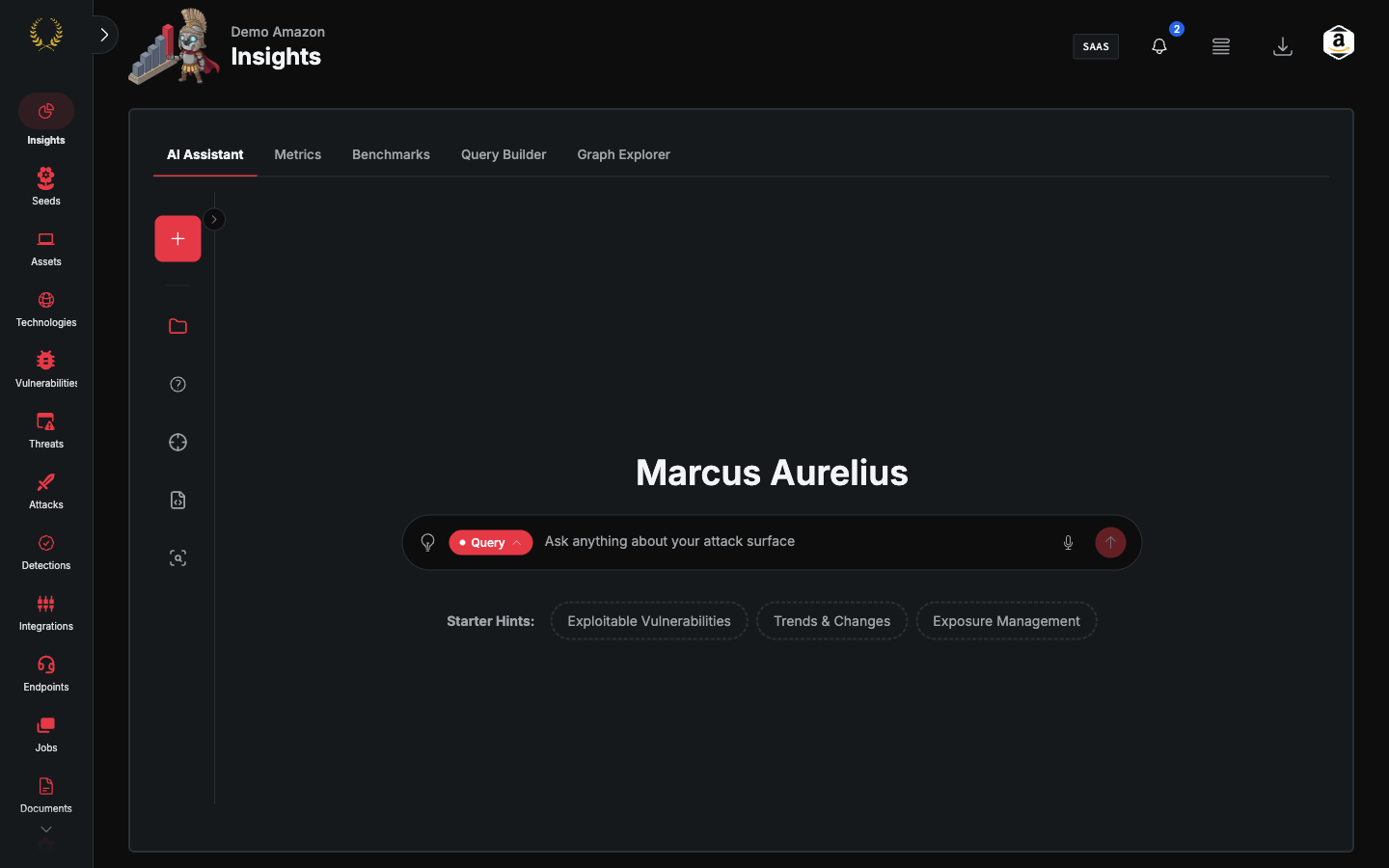
The AI Assistant is your conversational interface to Guard's security data. Ask questions in plain English — "What are my most critical open vulnerabilities?", "Show me assets discovered in the last 7 days", "Which domains have expiring certificates?" — and get immediate, data-backed answers.
Two Modes of Operation
The AI Assistant operates in two modes, toggled via a control at the bottom of the chat:
Query Mode — Natural-language queries against your Chariot data. The assistant retrieves and presents information from your security database. Best for quick lookups, reporting questions, and data exploration. Query Mode is enabled when AI inference is turned on for your account — a Praetorian admin can configure this.
Agent Mode — Enables Aurelius, Guard's AI security operator, to take action on your behalf. In this mode the assistant can execute scans, delegate tasks to specialist agents, build attack graphs, and manage assets. Agent Mode must be explicitly enabled by a Praetorian operator.
Key Features
Conversation History — A collapsible sidebar lists all your past conversations, searchable and sorted by recency. Pick up any previous thread where you left off.
Voice Input — Click the microphone icon to speak your question instead of typing.
Entity Mentions — Type
@to mention specific assets, risks, or other entities directly in your message for precise questions.Agent Execution Traces — When running in Agent Mode, a trace drawer shows the step-by-step execution of agent tasks, including tool calls, token counts, and status indicators.
Metrics
The Metrics dashboard serves as your central command center for monitoring and managing your security posture. The interface is organized into three main sections — Vulnerabilities, Assets, and Remediation — each offering insights through customizable widgets.
Default Layout
Vulnerabilities Section
The Vulnerabilities section provides a comprehensive view of your security landscape through several key widgets. The Noise Reduction widget helps you distinguish between active threats and resolved issues by displaying both open and remediated vulnerabilities side by side.
Complementing this, the Vulnerability Overview widget tracks the lifecycle of vulnerabilities, revealing patterns in how issues are discovered and resolved over time.
For immediate attention to critical issues, the Open Critical and High Risk Vulnerabilities widget presents a curated list of your most pressing security concerns.
The Vulnerability Analysis widget rounds out this section by providing a detailed timeline view that breaks down vulnerabilities by severity, allowing you to identify trends and patterns in your security posture over time.
Assets Section
Understanding your asset landscape is crucial for effective security management. The External Attack Surface widget provides a geographic visualization of your assets, helping you understand their physical distribution and potential risk exposure across different regions.
The Asset Counts widget offers a clear breakdown of your inventory by type while the Assets Over Time widget visualizes how your asset portfolio has evolved, making it easy to track growth and changes in your infrastructure.
Remediation Section
Effective remediation is key to maintaining strong security, and this section provides deep insights into your team's performance. The Remediated Vulnerabilities Over Time widget shows your progress in addressing security issues, with a detailed breakdown by severity level.
To help you gauge efficiency, the Average Remediation Time widget displays the mean time taken to address vulnerabilities of different severity levels.
The Median Remediation Time widget provides an alternative perspective on remediation speed, often offering a more representative view of typical resolution times by filtering out extreme outliers.
Dashboard Customization
The dashboard adapts to your specific needs through intuitive customization options:
Add Widget — Click the Add button in the top right corner to incorporate additional widgets into any section.
Edit Mode — Click Edit to enter edit mode, where you can drag and drop widgets to resize and reposition them. The background changes color to indicate you are in edit mode.
Save or Cancel — Once you are satisfied with your layout, click Done to lock it in place, or Cancel to discard changes.
Reset to Defaults — Within edit mode, click Reset to Default Layout to restore the dashboard to its original configuration.
Your layout is saved automatically and persists across sessions.
Query Builder
The Query Builder lets you construct, execute, and save graph queries against your security data using a visual interface. It is designed for security analysts who need to answer complex questions about relationships between assets, vulnerabilities, ports, cloud resources, and Active Directory objects.
Layout
The Query Builder has two main panels:
Sidebar (left) — A searchable folder tree containing saved queries organized into seven categories:
Custom Queries — Your own saved queries
Common Queries — Frequently used queries for common security scenarios
Concerning Exposures — Queries for identifying worrisome exposure patterns
Critical Advisories — Pre-built queries for critical CVEs and security vulnerabilities
AD Attack Paths — Active Directory privilege escalation and attack path queries
Cloud Attack Paths — Cloud infrastructure and service attack path queries
ATO Attack Paths — Account takeover and identity-based attack path queries
Workstation (right) — The main area where you build, view, and execute queries visually using an interactive node-and-edge graph.
How It Works
Select a saved query from the sidebar, or create a new one with the New Query button.
Build your query visually — Add entity nodes (Assets, Risks, Ports, AD Objects, AWS Resources), connect them with relationship edges, and set filters on each node to narrow your results.
Execute the query — Click Run to send the query to Guard's graph database.
View results with entity-specific columns with sortable, filterable results
Key Features
Save and Duplicate — Save your custom queries for reuse, or duplicate an existing query as a starting point.
Unsaved Changes Protection — Guard warns you before navigating away from unsaved query edits.
Deep Linking — Query state is preserved in the URL, making it easy to share specific queries with teammates.
Graph Explorer
The Graph Explorer provides an interactive network visualization of your entire attack surface. While the Query Builder focuses on structured queries, the Graph Explorer lets you visually browse and explore relationships between entities in a free-form, map-like interface.
Assets, seeds, vulnerabilities, and technologies can be grouped and filtered to easily understand the context in your environment.
Navigation
The graph is fully interactive — pan, zoom, click on nodes to inspect them, and explore the relationships between entities in your attack surface. The visualization adapts to your filter selections in real time.
Getting Help
If you have questions about the Insights page or need help getting the most out of these tools, reach out to our support team at support@praetorian.com.