Scan Limits
Overview
The Praetorian Guard Platform (PGP) includes built-in scan rate limiting that gives you precise control over how aggressively the platform scans your infrastructure. Rate limiting allows you to balance between scan speed and network impact, ensuring that security scanning does not interfere with production workloads or trigger false alarms from network monitoring tools.
Every organization has different tolerance for scan traffic. A cloud-native startup with elastic infrastructure may want maximum parallelism to complete scans quickly, while a financial institution with sensitive ICS/SCADA networks may need to throttle scanning to avoid disrupting critical systems. PGP's rate limiting puts this control directly in your hands.
Rate limits apply account-wide to all scans initiated by your organization. Changes take effect on the next scan cycle — no restart or redeployment is required.
What Rate Limiting Controls
PGP provides two independent rate limiting controls that work together to manage scan intensity:
Simultaneous Hosts
Controls how many assets are scanned in parallel at any given time. A higher value means more hosts are scanned concurrently, completing scans faster but generating more network traffic. This setting directly affects how many scan jobs are dispatched to the scan queue simultaneously.
Range: 30 – 500 hosts (custom), or System Managed (up to 1,500 hosts)
Default: System Managed — the platform automatically optimizes parallelism based on infrastructure capacity
Backend validation: Values must be between 10 and 500 when custom-set
Requests Per Host
Controls the maximum rate of requests sent to each individual host during a scan. This limits how intensely any single asset is probed, which is critical for avoiding denial-of-service conditions on sensitive targets or triggering WAF/IDS rate-limiting rules on the target side.
Range: 25 – 250 requests/second (custom), or System Managed (up to 300 rq/s)
Default: System Managed — the platform applies optimal request rates per capability
Backend validation: Values must be at least 25 rq/s when custom-set
Prerequisites
To configure rate limiting, you need:
An active Praetorian Guard Platform account
Access to the Settings page in the PGP web interface
No special permissions are required — all users can view and modify rate limiting for their account
Setup
Rate limiting is configured through the PGP web interface under Settings.
Step-by-Step Configuration
Log in to the Praetorian Guard Platform
Navigate to Settings from the left sidebar
Select the Scan Settings tab
Locate the Rate Limiting card
Adjust the Maximum simultaneous hosts scanned slider (30–500, or toggle to System Managed for up to 1,500)
Adjust the Maximum rate of requests per host slider (25–250 rq/s, or toggle to System Managed for up to 300 rq/s)
Click Apply to save your changes
Changes take effect on the next scan cycle. There is no need to pause or restart scans.
Field Reference
Suggested Ranges
How Rate Limiting Works
Understanding how rate limits are enforced helps you make informed decisions about your configuration.
Job Queue Processing
PGP uses a queue-based architecture for scan execution. A background scheduler reads your rate limit settings and controls how many scan jobs are dispatched at any given time. When you set simultaneous hosts to 100, the scheduler ensures that roughly 100 hosts have active scan jobs at any point — as one completes, another is dispatched. The system limits the queue to approximately 5× your configured simultaneous hosts value to prevent queue overload.
Capability-Level Enforcement
The requests-per-host limit is applied at the individual scanning capability level. Each security tool (such as Nuclei for vulnerability scanning or service fingerprinting tools) reads the rate limit from the job configuration and applies it as a hard cap on outbound requests. For example, Nuclei uses the configured rate as its -rl (rate limit) flag, ensuring it never exceeds the specified requests per second against any single target.
Job Partitioning
The simultaneous hosts setting also influences how scan jobs are distributed across processing partitions. Higher limits result in more partitions, enabling greater parallelism across PGP's scanning infrastructure. This ensures that the configured limit translates into real-world scanning throughput.
Scan Profiles
Scan profiles for individual or groups of assets are also configurable on the Settings page.
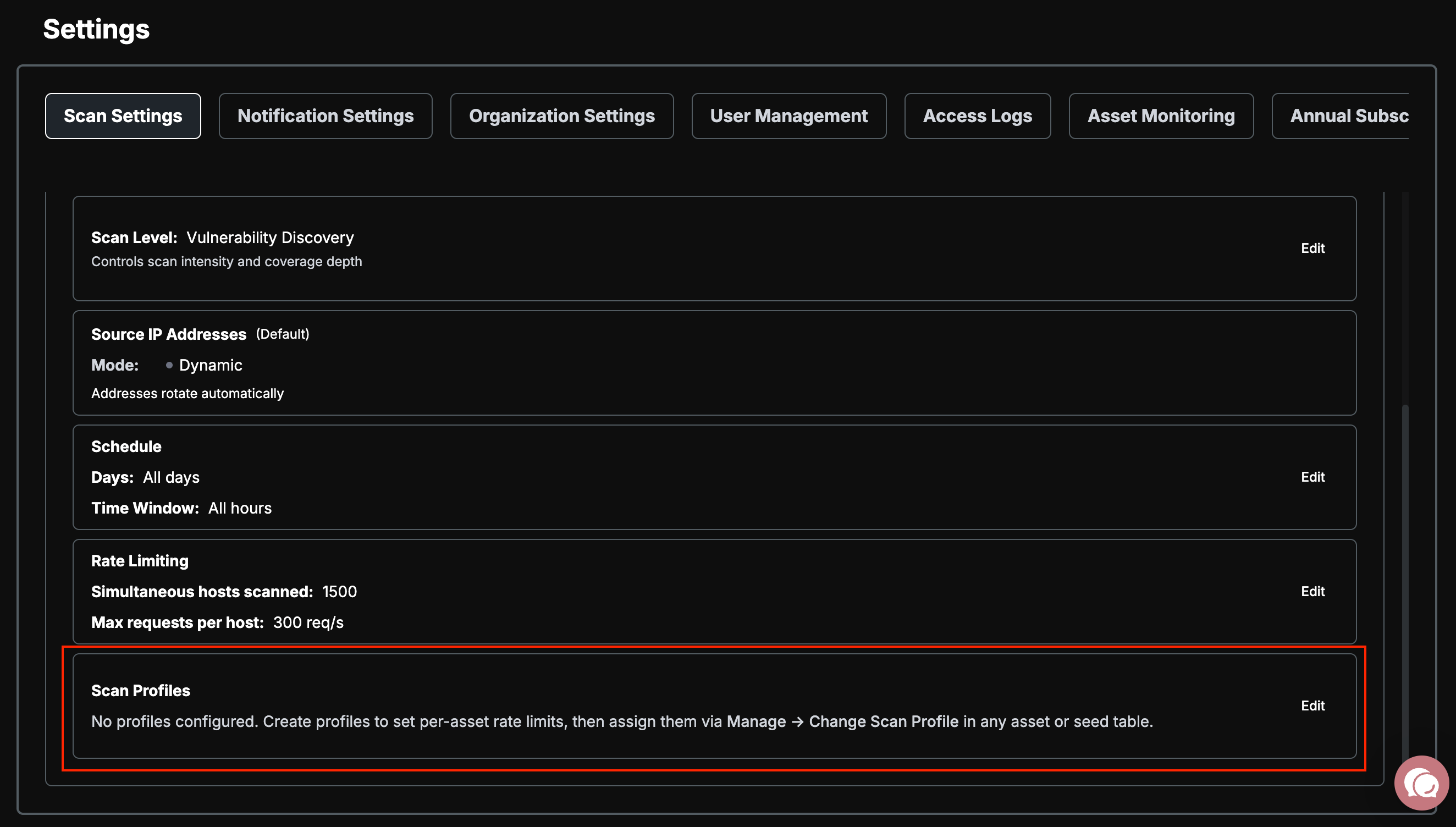
Scan profiles can be created on the Scan Settings tab of the Settings page. These profiles can be more or less restrictive than the global account scan settings. Once created, assets can be added to the profile. When an asset is added to the profile, that asset and all of its children assets (all of the assets found directly from that asset) will be subject to this profile.
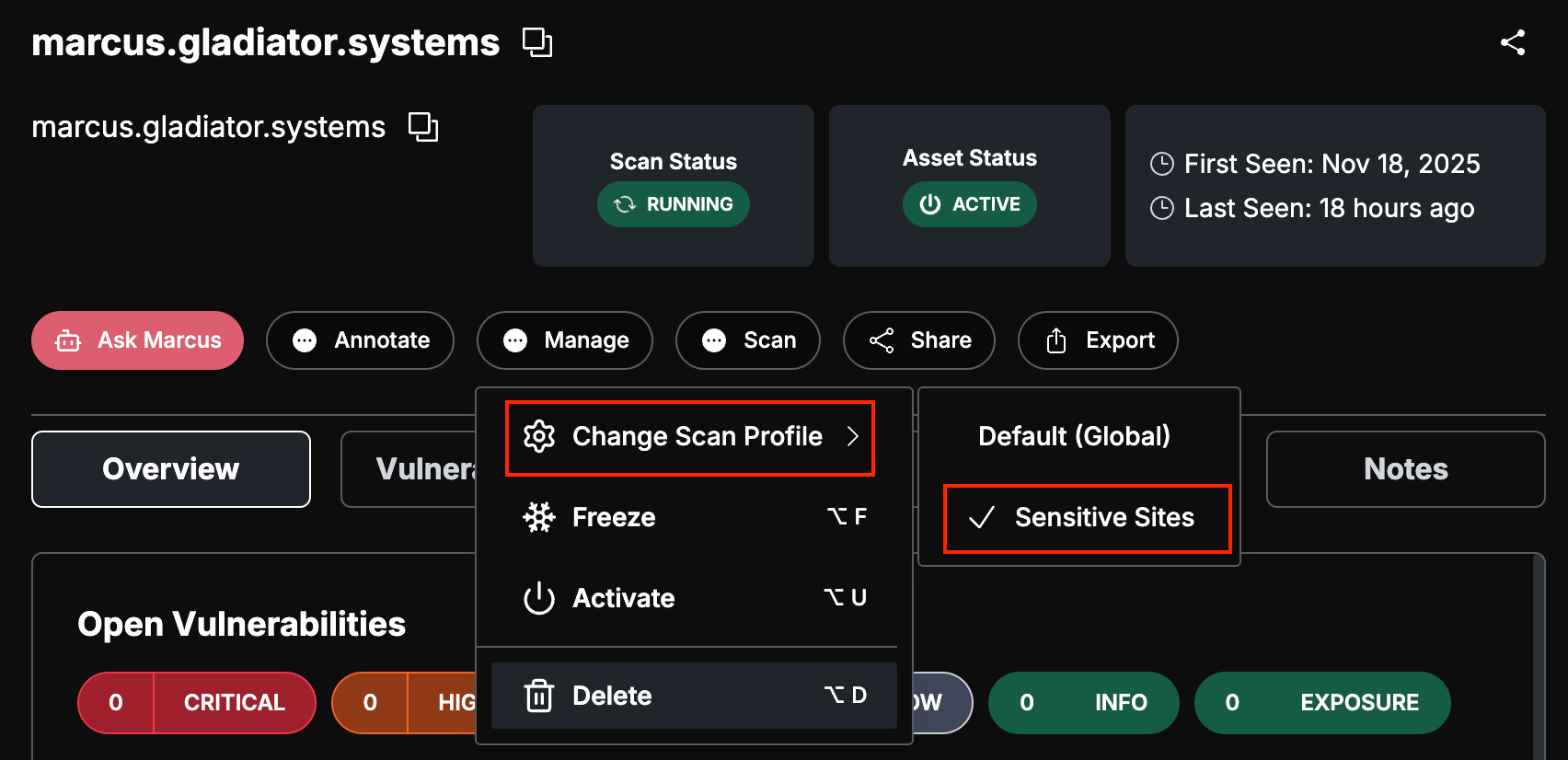
When a Scan Profile is created, an asset can be added to the profile from that asset's details page. Clicking on Manage > Change Scan Profile will present the available scan profiles.
Troubleshooting
Security and Data Handling
Account-scoped: Rate limit settings are stored per account and apply only to your organization's scans. They do not affect other tenants.
Stored securely: Settings are persisted in PGP's backend database (DynamoDB) with encryption at rest and in transit.
No sensitive data: Rate limit configuration contains only numeric values — no credentials, tokens, or PII.
Audit trail: Changes to rate limit settings are logged and visible in the Access Logs tab of Settings.
Praetorian impersonation: Praetorian support staff can view and adjust rate limits on behalf of customers when providing assistance, using the platform's impersonation feature with full audit logging.